How to Review 3D Models Online With Your Team
Your clients shouldn't need to install Blender just to give feedback on a 3D model. Here's how to share interactive 3D reviews right in the browser.
3D review has been stuck in the dark ages
If you work with 3D — product design, game assets, architectural visualization, or anything in between — you've probably struggled with sharing your work for review.
The old approach looks something like this:
- Render a bunch of screenshots from different angles.
- Email them to the client.
- Client replies: "The back part looks weird." Which back part? From which angle?
- Repeat until everyone is exhausted.
Screenshots strip away the whole point of working in 3D. And asking clients to install Blender or Maya just to leave a comment? That's never going to happen.
The better way: interactive 3D review in the browser
We added 3D review to Synks because we kept hearing the same frustration from product designers and 3D artists. The solution is straightforward: upload your model, share a link, and let reviewers interact with it directly in their browser. No downloads, no plugins, no account required.
What reviewers can do
Once they open the review link, reviewers can:
- Orbit, zoom, and pan around the model — full 3D navigation.
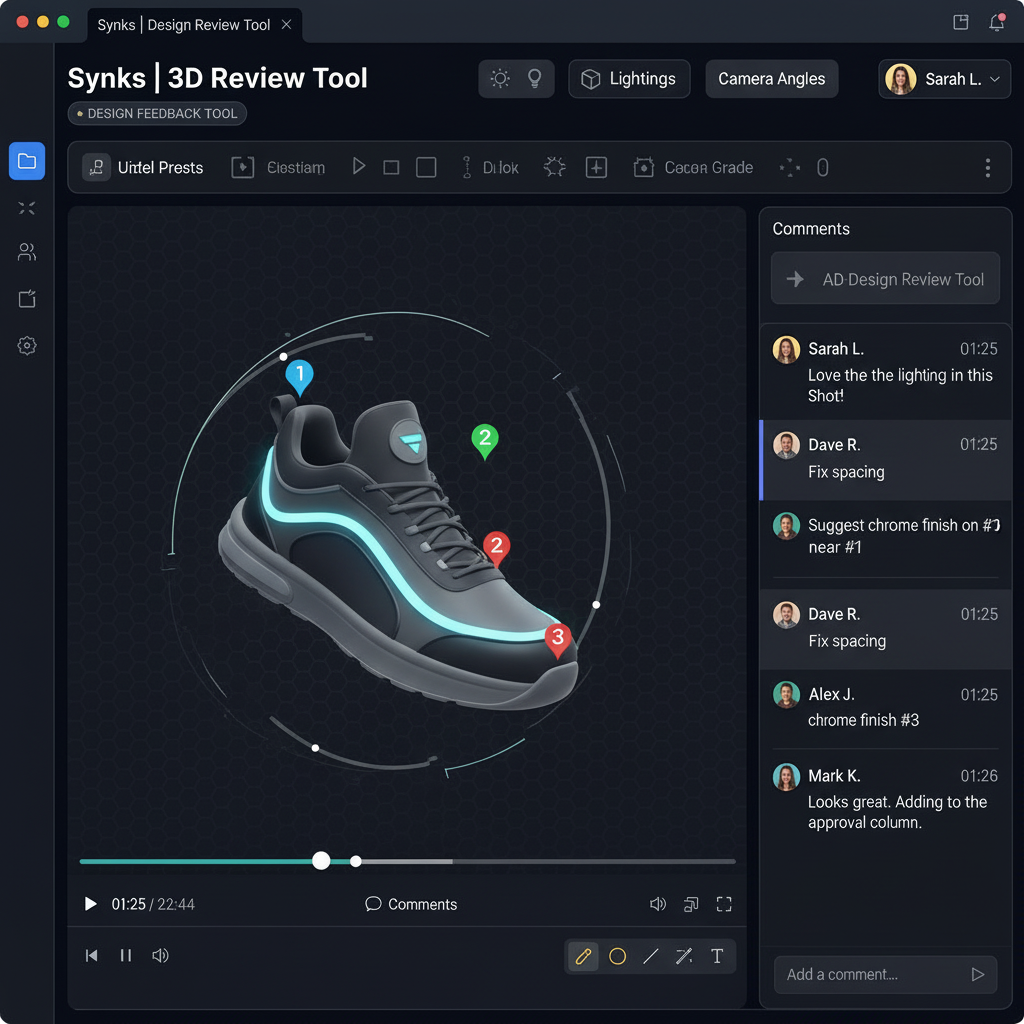
- Pin comments directly on the mesh — click anywhere on the model surface to leave feedback.
- Draw annotations — circle or highlight areas that need attention.
- Compare versions — view two model versions side-by-side to see what changed.
- Adjust the lighting — check how the model looks under different daylight conditions.
Which file formats work
We support the most common 3D formats:
- .glTF / .glb — this is our recommended format. It's lightweight, widely supported, and .glb bundles textures with the model.
- .obj — a classic format that works well for meshes.
- .fbx — common in game development and animation.
- .stl — popular in 3D printing and engineering.
A few tips for the best review experience
- Export in glTF or glb whenever possible. It loads fastest and preserves textures.
- Bundle your textures. Using .glb means reviewers see the model with materials applied, not just a grey mesh.
- Set a good default camera angle. Start reviewers looking at the most important part of the model.
- Add a note about what to focus on. A quick description of what changed in this version helps reviewers give targeted feedback.
It's simpler than you think
Upload, share, review. That's really it. We wanted 3D review to be as easy as sharing an image — and that's what we aimed for.
— The Synks Team
Ready to try Synks?
Start collecting visual feedback for free — no credit card required.
Get Started Free